What's new

SSH Password(Post#19) & Passwordless(Post#16) Key Setup - ASUS-Merlin Router to AIMesh Nodes

JB_1366

Occasional Visitor
Im running this script manually on my node, and manually uploading node_upload.txt to my main router. is there a way to automate the process, so i can just run my script on router to use node_upload.txt and apply results? A direct pull of variables would be great, if possible.
 
Last edited:
If you're running Merlin on the node couldn't you write a script that you execute on the router that would SSH into the node, run the script you pasted above, and have the output piped to a local file?
 
If you're running Merlin on the node couldn't you write a script that you execute on the router that would SSH into the node, run the script you pasted above, and have the output piped to a local file?
If you have a way, I'm listening. Gemini-AI tried for me for hours, would not ssh-authenticate between routers, and I tried with ssh-key and password. if router could ssh into node, I could bypass script and just pull wireless variables. ASUS might have it locked down.
 
Last edited:
If you have a way, I'm listening. Gemini-AI tried for me for hours, would not ssh-authenticate between routers, and I tried with ssh-key and password. if router could ssh into node, I could bypass script and just pull wireless variables. ASUS might have it locked down.

Edit: FYI I just used Putty to SSH into my main router and then did command-line SSH to go from there into one of my nodes (main router is Merlin, node is Asus stock firmware), so it does work.
 
Last edited:
I can ssh into router, then from there to node, both running Merlin.

Make sure allow password login is enabled in the SSH config on the router.
 
GROK gave me a ssh program called EXPECT, worked perfectly. i can now extract wireless data on node automatically.
 
Last edited:
EDIT: thanks to GROK(EXPECT) & GEMINI(CODING) - all automated.
 
Last edited:
I can ssh into router, then from there to node, both running Merlin.

Make sure allow password login is enabled in the SSH config on the router.

Note passwordless ssh login of the nodes is possible but it takes some extra steps such as creating a ssh key pair and then putting the public key in the "Authorized Keys" field in the UI. This info is then distributed to the nodes.
 
Note passwordless ssh login of the nodes is possible but it takes some extra steps such as creating a ssh key pair and then putting the public key in the "Authorized Keys" field in the UI. This info is then distributed to the nodes.
Are there any simple steps written down anywhere for this already (I could use AI I guess).

I looked at doing it at one stage and saw it wanted to use an opkg package which I was a bit wary of as I didn’t want to stuff up my entware install, so I never got around to it. The need for it actually passed.
 
Are there any simple steps written down anywhere for this already (I could use AI I guess).

I looked at doing it at one stage and saw it wanted to use an opkg package which I was a bit wary of as I didn’t want to stuff up my entware install, so I never got around to it. The need for it actually passed.
I just spent 2hrs with AI, couldnt get it to work.
 
Sorry, I can't find reference right now - I created them a while back. But from memory it was something like:
Code:
dropbearkey -t rsa
-f ~/.ssh/id_rsa -s 3072

Note you have to save and restore the ~/.ssh directory after reboot since the home directory is in tmp.
 
I just spent 2hrs with AI, couldnt get it to work.

OK ta. I asked my AI, might test it later.
Seems relatively straightforward.
 
Looks like it does want the private key as id_dropbear though. So need this too:
Code:
cp ~/.ssh/id_rsa ~/.ssh/id_dropbear
 
I just spent 2hrs with AI, couldnt get it to work.
Try this. Maybe my AI is better than your AI... :-). Commands below for ease of copy paste, but please read the instructions.
As regards getting the RSSI values, I have a script which does that by leveraging the individual scripts (which do that) on each node.
You can DM for a copy but you can probably get your AI to write it for your system, using vibe-coding.


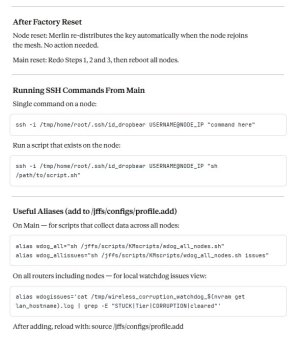
All Commands are issued from MAIN (SSH using e.g. Putty)
For all edits to files I use WinSCP and open the file directly in the dir by double-clicking it.

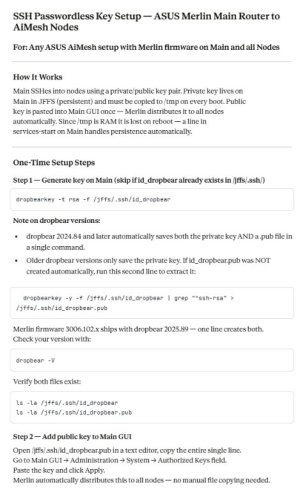
Step 1: Generate the security keys
Can skip if id_dropbear already exists in /jffs/.ssh
Code:
dropbearkey -t rsa -f /jffs/.ssh/id_dropbear

On modern FW, this should generate both id_dropbear AND id_dropbear.pub files.
It also prints out the full key on the SSH terminal (Putty) screen, along with a "Fingerprint:" line (which is NOT part of the key).
The full key starts with "ssh-rsa" and ends with "YourUserName@YourRouterName".
You can save it to a text file at this point (you can still retrieve it later from the file though).

For completeness, note that older FW with much older dropbear versions only save the private key.
If id_dropbear.pub was NOT created automatically, simply run this second line to extract it:
Code:
dropbearkey -y -f /jffs/.ssh/id_dropbear | grep "^ssh-rsa" > /jffs/.ssh/id_dropbear.pub

Step 2: Add the public key (that you saved above) to Main via the WebGUI (refer attachment)
Main GUI → Administration → System → Authorized Keys field; click Apply.

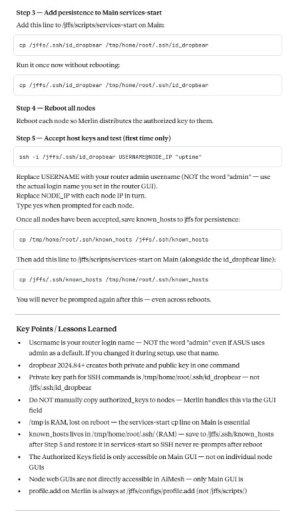
Step 3: Add this line to the /jffs/scripts/services-start file on Main
Code:
cp /jffs/.ssh/id_dropbear /tmp/home/root/.ssh/id_dropbear

Step 4: Reboot
Reboot Nodes (only, NOT Main)

Step 5: Create known host file and make persistent
Issue these one at a time; answer 'y' as a one-off:
Code:
ssh -i /tmp/home/root/.ssh/id_dropbear USERNAME@Node1_IP "uptime"
ssh -i /tmp/home/root/.ssh/id_dropbear USERNAME@Node2_IP "uptime"
ssh -i /tmp/home/root/.ssh/id_dropbear USERNAME@Node3_IP "uptime"
etc...

Once all nodes have been accepted (y), save the generated (normally temporary) "known_hosts" to jffs for persistence over reboots:
If you use WinSCP, you may have to click refresh to check the known_hosts file is actually in /jffs/.ssh
Code:
cp /tmp/home/root/.ssh/known_hosts /jffs/.ssh/known_hosts

Then add this line to /jffs/scripts/services-start on Main (below the id_dropbear line you added in step 3):
Code:
cp /jffs/.ssh/known_hosts /tmp/home/root/.ssh/known_hosts
You should never be prompted for y/n again after this step - even across reboots.
====================================================================

[EDIT1] Refer post below for background for edit (both keys are generated with one cmd line).
[EDIT2] Refer this post for persistence.
HTH (and huge thanks to @rung for the guidance).

k.

p.s. You can retrieve your NodeX_IP in the AiMesh, (select node), Network screen underneath the "Uplink Type" line (amongst other sources).

 

Attachments

  • SSH_KeySetup_HowTo_Generic_01.jpg
    SSH_KeySetup_HowTo_Generic_01.jpg
    69.8 KB · Views: 3
  • SSH_KeySetup_HowTo_Generic_02.jpg
    SSH_KeySetup_HowTo_Generic_02.jpg
    69.6 KB · Views: 3
  • SSH_KeySetup_HowTo_Generic_03.jpg
    SSH_KeySetup_HowTo_Generic_03.jpg
    59.9 KB · Views: 3
Last edited:
Try this. Maybe my AI is better than your AI... :-). Comamnds below for ease of copy paste.

I am assuming you tried this and it worked for you?

Edit: sorry, grumpy today. Looks like it does!
 
Last edited:
Try this. Maybe my AI is better than your AI... :-). Comamnds below for ease of copy paste.

As regards getting the RSSI values, I have a script which does that by leveraging the individual scripts (which do that) on each node.
You can DM for a copy but you can probably get your AI to write it for your system, using vibe-coding.

Step 1
Code:
dropbearkey -t rsa -f /jffs/.ssh/id_dropbear
dropbearkey -y -f /jffs/.ssh/id_dropbear | grep "^ssh-rsa" > /jffs/.ssh/id_dropbear.pub

Step 3
Code:
cp /jffs/.ssh/id_dropbear /tmp/home/root/.ssh/id_dropbear

Step 5 (one at a time; answer y as a one-off)
Code:
ssh -i /tmp/home/root/.ssh/id_dropbear [email protected] "uptime"

HTH

k.
it worked, thank you!!
 
I'd suggest you lay out how you installed expect in case anyone runs across this thread in the future and wants to duplicate what you're doing.
in case someone wants to use a password, install EXPECT through opkg, here is what i used:
Code:
#!/bin/sh

set name "name"  ; # admin name
set node_ip "192.168.50.2"  ; # node IP
set password "password"  ; # node password

spawn ssh $name@$node_ip
expect {
  "assword:" { send "$password\r"; exp_continue }
  eof
}
send "for i in wl0 wl1; do\r
      echo \"=== \$i clients ===\"\r
      wl -i \$i assoclist 2>/dev/null | awk '{print \$2}' | while read mac; do\r
        rssi=\$(wl -i \$i rssi \$mac 2>/dev/null || echo \"N/A\")\r
        echo \"  \$mac   RSSI: \$rssi dBm\"\r
      done || echo \"  (no clients)\"\r
    done\r"
expect eof
 

Latest threads

Support SNBForums w/ Amazon

If you'd like to support SNBForums, just use this link and buy anything on Amazon. Thanks!

Sign Up For SNBForums Daily Digest

Get an update of what's new every day delivered to your mailbox. Sign up here!
Back
Top