What's new
  • SNBForums Code of Conduct

    SNBForums is a community for everyone, no matter what their level of experience.

    Please be tolerant and patient of others, especially newcomers. We are all here to share and learn!

    The rules are simple: Be patient, be nice, be helpful or be gone!

HDHomerun and OpenVPN

CaptnDanLKW

Senior Member
Has anyone successfully been able to get the HDHomerun app to discover and stream channels over OpenVPN?

My modem is a very old HDHR2-US. I think it uses IGMP to find the device on the network and then other ports to initiate the stream.

When firing up the app it cannot find the device (obviously). The ip of the unit is 192.168.50.60 but of course my client address on my phone or iPad have the 10.0.8.x address.

I suspect some port forwarding or iptable rules can make it work if the discovery packet is forwarded.

Any ideas or working rules?
 
It could be that the HDHomerun--I loved those boxes, still have two in the closet, an HRHD2 and a Prime--are a little like TiVo in being very finicky about being on the same local network because of DRM. That means TCP, not UDP, and it means TAP, not TUN.

I have successfully linked two Tivos by having two separate routers running a TAP connection: so one router, a Gl-iNet Marble, acting as a client and connected to a Tivo (#1), another router (an AC-56U) acting as a server, connected to a Tivo (#2), and with port forwarding on its internet facing router so when the Marble reaches the internet facing router it is forwarded to the 56U. Tivo #1 and #2 and the Marble pull reserved IPs from the 56U. Any kind of lag seems to alert the Tivos that they are not on the same network and the normal operation fails.

But the HRHD2 only does free over the air, so maybe that isn't it at all.
 
Has anyone successfully been able to get the HDHomerun app to discover and stream channels over OpenVPN?

My modem is a very old HDHR2-US. I think it uses IGMP to find the device on the network and then other ports to initiate the stream.

When firing up the app it cannot find the device (obviously). The ip of the unit is 192.168.50.60 but of course my client address on my phone or iPad have the 10.0.8.x address.

I suspect some port forwarding or iptable rules can make it work if the discovery packet is forwarded.

Any ideas or working rules?
No idea if it works but in a Reddit thread someone suggested the following worked for them with iOS devices while using WireGuard.
I know this is an older thread but thought it may help someone who is looking for a solution and stumbles on it. I use ‘Channels for HDHomerun’ on my iPhone and iPad to watch over my Wireguard VPN. You can enter the IP of the server in the app and as long as your VPN has permission to that subnet it will connect.

I too have an old HDHR two tuner unit that I used for a good number of years. May have to drag it out and experiment with it to see if it works through VPN.

PS: There is some config information here: https://info.hdhomerun.com/info/hdhomerun_config
And here: https://www.silicondust.com/hdhomerun/hdhomerun_development.pdf

It appears one may have to find a way to route the ICMP packets from the HDHomerun through the VPN tunnel.

Another PS: Maybe the following OpenVPN doc may be relevant:
 
Last edited:
I haven't tried it. But I do recall that the HDHomeRuns originally would set TTL on the packets to a small number, which could make streaming them remotely difficult. One can have a Linux-based firewall rewrite the TTL values to circumvent that.
 
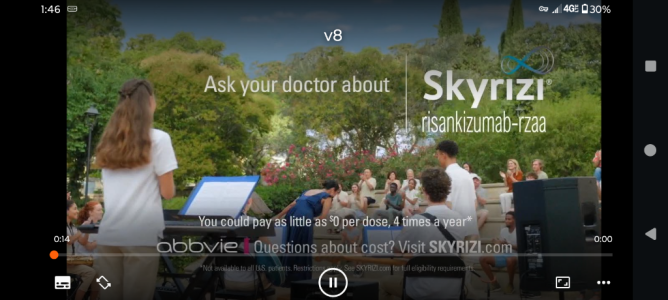
One workaround is to use an alternate media player like VLC that can play network streams. What worked for me through an OpenVPN tunnel, although choppy, was to use VLC and connect direct to the specific channel on the HDHR tuner through the OpenVPN tunnel. On the Android VLC app I went to More then selected Stream. In the field I input the direct IP address path to the HDHR and the specific channel I wanted to watch. Example of a channel path: http://192.168.2.237:5004/auto/v8.1

Example from an Android cellphone using VLC through an OpenVPN tunnel:
Screenshot.png

In the Android VLC once the stream was successfully accessed, VLC creates a shortcut for it in the Streams section.

Used a RT-AX86U Pro running Asus-Merlin 3006.102.6 with OpenVPN server enabled.
HDHomeRun Model: HDHR4-2US with firmware: 20250623
 
I appreciate the ideas. I have considered trying the VLC method connecting directly to the tuner but that only worked with the prime (and newer ATSC 1.0s). (correction my model is HDHR3-US) which is the 1st dual tuner ATSC 1.0 ever made. No DRM, basic firmware, unlike the others. The embedded web server on this model has no links to channels, just links to "Download Drivers and Install Instructions".

Model: HDHR3-US
Firmware: 20230505
I feel the magic will be that IGMP packet over to the 192.168.50.x segment. I'll go down the reddit rabbit hole and report back, if it ever return.
 
I have considered trying the VLC method connecting directly to the tuner but that only worked with the prime (and newer ATSC 1.0s). (correction my model is HDHR3-US) which is the 1st dual tuner ATSC 1.0 ever made.
I bought the original HDHR tuner (HDHR-US) when they were first released. It predated the HDHR3-US. It gave up the ghost after five or six years and SiliconDust offered me the HDHR4-2US for a reduced price at the time. With the original HDHR-US, if I remember right, there was a way to access it directly with VLC but its been so long I don't remember exactly how I did it. Google AI (yeah I know, I know, it's AI, take it for what it's worth) indicates the following for using VLC with the HDHR-US:
To watch an HDHR-US channel using VLC media player, you can access the channel lineup M3U playlist from your device's IP address or hostname, or use the HDHomeRun software on a computer to launch VLC directly.

Method 1: Using the M3U Playlist URL
This method requires your HDHomeRun device's IP address. You can typically find this in your router's connected devices list, or by using the hdhomerun_config discover command in your terminal.
  1. Get the playlist URL: Open a web browser and navigate to http://<HDHR-US_IP_address>/lineup.m3u (replace <HDHR-US_IP_address> with your device's actual IP address, e.g., 192.168.1.100). This will download or display a list of all detected channels.
  2. Open in VLC: In VLC, go to Media > Open Network Stream.
  3. Enter the URL: Paste the http://<HDHR-US_IP_address>/lineup.m3u URL into the network URL field and click Play.
  4. View channels: The playlist should load in VLC's playlist window, allowing you to select and play individual channels.

Method 2: Using the HDHomeRun Config GUI (Windows/Mac)
The official HDHomeRun software can launch VLC with the correct stream settings automatically.
  1. Install the software: Make sure you have the official HDHomeRun software installed on your computer. You can download it from the SiliconDust support website.
  2. Run the GUI: Open the HDHomeRun Config GUI application (found in your Start Menu or Applications folder).
  3. Select device and scan channels: Select your device from the list on the left, and use the "Lineup" tab to scan for channels if you haven't already.
  4. Launch VLC: There should be an option to "Launch VLC" from within the application, which will automatically open VLC and start streaming a channel.

Method 3: Using the hdhomerun_config command-line tool (Advanced)
For advanced users, you can use the command-line utility to tune to a specific channel and stream it.
  1. Discover the device ID: Run hdhomerun_config discover in your command prompt or terminal to find your device ID (e.g., FFFFFFFF).
  2. Set the channel: Use a command like hdhomerun_config FFFFFFFF set /tuner0/channel auto:651000000 (replace FFFFFFFF with your device ID and adjust the frequency as needed after running a scan).
  3. Open the stream in VLC: In VLC, use Media > Open Network Stream, select the UDP/RTP protocol, and specify port 5000. This method is more complex as it requires manual frequency management.
For most users, using the http://hdhomerun.local/lineup.m3u URL method is the most straightforward.

For the HDHR3-US, Google AI says the following (again it's AI so take it for what it's worth):
You can use VLC media player to watch live TV from your SiliconDust HDHR3-US device in a couple of ways: directly through the HDHomeRun software's built-in function or by manually opening the network stream in VLC.

Method 1: Using the HDHomeRun Config GUI (Windows/Mac)
The easiest method is using the official setup tool, which can automatically open the stream for you:
  1. Ensure VLC is installed on your computer. The HDHomeRun software utilizes VLC's decoders for playback.
  2. Open the HDHomeRun Config GUI (Setup tool) on your Windows or Mac PC. You can download the latest software from the SiliconDust Support page if you don't have it installed.
  3. Perform a channel scan using the configuration utility to ensure your device has a channel list.
  4. Select the "Launch VLC" option within the Config GUI interface. VLC should automatically open and display the selected channel's stream.
  5. A second status light on the front panel of your HDHR3-US will illuminate, indicating a successful tuning and stream.

Method 2: Manually Opening the Network Stream in VLC
For more control or on other systems, you can open the network stream URL directly in VLC:
  1. Find your device's IP address by checking your router's connected devices list or using the HDHomeRun software.
  2. Open VLC media player.
  3. Go to the Media tab (or File on Mac) and select Open Network Stream.
  4. Enter the network stream URL using the format http://[DEVICE_IP_ADDRESS]:5004/auto/v[CHANNEL_NUMBER], replacing [DEVICE_IP_ADDRESS] with your device's actual IP and [CHANNEL_NUMBER] with the channel you want to watch (e.g., 192.168.1.100).
  5. Click Play to start streaming the channel.
VLC handles the necessary MPEG2 decoding, making it a reliable player for the HDHomeRun's output.
We can also look into how to set up DVR functionality for recording shows, which works well with the HDHR3-US. Would you like to explore compatible DVR software options?
 
TAP Open VPN Server allows this and works very well. I also have older HDHR-US 3 tuners. Infact this is the only reason I have SERVER1 as a TAP server. Kodi with NextPVR PVR Plugin works well and my remote tv's in a different state jack right in. Full channel guide and everything. I have permanent "site to site" vpn setup so 2 Merlin routers basically. I did have to use "VPN Client Pro" on my android phone though and paid the one time lifetime license of TAP driver.

VPN Setting "Allocate from DHCP" to No and "Client Address Pool" you main subnet, just an area where the DHCP doesn't begin. Example, my DHCP Pool begins as 192.168.1.20 so "Client Address Pool" is 192.168.1.15 - 192.168.1.19

Windows Server with NextPVR as a backend installed.

Alternatively yeah, VLC would work, but that would invite spousal abuse as to "how crude" the method is. My way above, they just hit the guide button on the harmony remote and it pulls up a real channel guide for all OTA channels. Harmony 600 remotes with a FLIRC adapter so all the buttons on the remote essentially function like a regular cable box remote.
 
Last edited:
@js28194 Ahhhh so close. IOS OpenVPN Client - TAP mode not supported. Searching for IOS VPN Clients that support TAP - not finding any options, probably an AppleThing(TM).
1765851119905.png
 
Yeah, maybe you either jailbreak or get a little travel router
 
Check this
 
My config that has worked for many years...

1765916238844.png


Sorry about the iOS TAP driver thing... that is beyond my control. 100% different standard OpenVPN reduces the port scan issues.
 
Those older devices are considered Layer 2 hence the need for TAP server... the new HDHomerun devices to transcoding occurs on the HDHomerun devices so TCP seems to work fine. Either way I prefer my TAP method cuz my old stuff ain't broke.
 
And.... This is my client.ovpn file. Obviously something thing such as domain and keys are not displayed. Maybe move away from the iOS bubble to have more control over your devices and get a fraction control back? Sorry, never been an Apple fan due to control issues.

# Config generated by Asuswrt-Merlin 388.7, requires OpenVPN 2.4.0 or newer.

client
dev tap
# Windows needs the TAP-Win32 adapter name
# from the Network Connections panel
# if you have more than one.
;dev-node MyTap
proto udp
remote mycustomdomainname 11947
resolv-retry infinite
nobind
float
--cipher AES-256-GCM
;--data-ciphers AES-256-GCM:AES-128-GCM:AES-256-CBC:AES-128-CBC:CHACHA20-POLY1305
auth SHA512
keepalive 15 60
auth-user-pass
auth-nocache
remote-cert-tls server
# link-mtu 1633
# tun-mtu 1500
# keysize 256
<ca>
-----BEGIN CERTIFICATE-----
My Entire Certificate
-----END CERTIFICATE-----

</ca>
<tls-crypt>
-----BEGIN OpenVPN Static key V1-----
My Entire Statick Key
-----END OpenVPN Static key V1-----

</tls-crypt>
 

Similar threads

Support SNBForums w/ Amazon

If you'd like to support SNBForums, just use this link and buy anything on Amazon. Thanks!

Sign Up For SNBForums Daily Digest

Get an update of what's new every day delivered to your mailbox. Sign up here!

Members online

Back
Top