Rescue mode didn't work on mine either. If you have a second asus router try setting the problem one up as a mesh node.Lucky for you. I tried several times and even with different firmwares and lan ports, it just failed upon upload approx 30 to 50%. It just defaults to the original firmware. Somehow, getting to the rescue mode also quite an effort too...lol. I give up and probably try again some other time. Hopefully a new firmware from Asus resolves this bug problem of invisible link / buttons.
This worked perfectly for me.I apologize; I type the wrong command. It should be "hnd-write".
I uploaded the 388.4 firmware through WinSCP to the /tmp folder. Then, I SSHed into the router and ran "hnd-write filename". After it completed, I manually rebooted once, and after a few minutes, it updated to 388.4.
Please note that when updating the firmware using "hnd-write," it doesn't create an additional partition like updating from the web interface. Therefore, there is a risk associated with using this command. However, in case of failure, I can update it again using rescue mode.
It's been a while since reading the part of the thread which covered that, but I was thinking the idea was to make it a node and, _while_it's_the_node_, you upload its firmware via the controlling router's web interface. Your text quoted here suggests you (successfully?) made it a node, then switched it back to router mode, and only /then/ tried the firmware upload in its own web interface again.3. Change the GT-AX6000 into a aimesh node and then revert back and still no luck. The browse file and upload buttons are still missing under the firmware upgrade page.
Are you on stock firmware now and trying to go to Merlin?"Cannot execute SCP to start transfer. Please make sure that SCP is installed on the server and path to it is included in PATH. You may also try SFTP instead of SCP.
Command failed with return code 127." (how to overcome this error?)
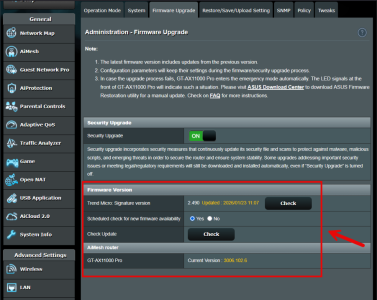
Normally looks like this and when clicked opens a pop up window to select the firmware file.
View attachment 54185
I did this with Firefox.
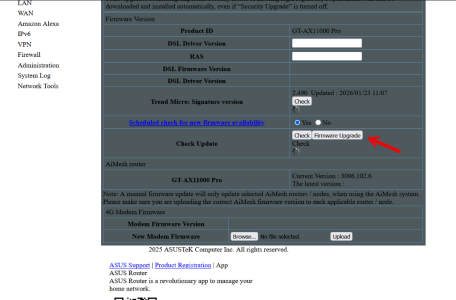
Go to the firmware update page then press "Alt" on keyboard then at the top of the browser select "View" > "page style" > "no style"
Now scroll toward the bottom of the update page and you should see an extra button before the "upload" button named "browse" which when clicked opens a pop up window for you to select a file for the update.
View attachment 54186
After you have the file selected and it is showing in the window next to "browse" go back to view > page style and change it back to basic page style then update should start.
I guess is will just stick to this fw for now since there aren’t any major issue…
If you haven't been able to update the firmware and are still using that hardware try one of the following (both work for my AC86U).Didn't work for me.
I think there is some level of corruption stemming from a recent firmware version. When I saved/restored the configuration files after my first factory reset, that caused the entire system to stop working. A second/third reset had to be performed. The third being where I restored a year old configuration file to get the wifi working again.
Is this behavior related to the firmware itself, or could it be a browser compatibility issue?
www.snbforums.com
Have you tried rebooting the router, including removing power and reapplying power?Any assistance or advice would be greatly appreciated.
Hey Tech9,Look at the corresponding firmware release thread. For your router model must be this one:
![]()
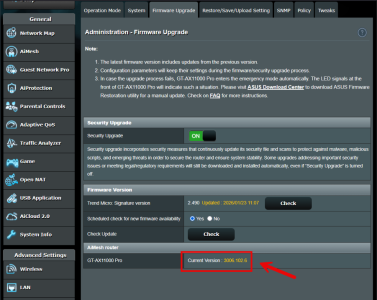
Release - Asuswrt-Merlin 3006.102.6 is now available
Asuswrt-Merlin 3006.102.6 is now available. This release focuses on new GPL merge, a complete redesign of the Traffic Monitor pages, and the addition of two new models: RT-BE58_Go - https://www.asus.com/networking-iot-servers/wifi-7/all-series/rt-be58-go/ GT-BE19000AI -...www.snbforums.com
Hey Bennor,Have you tried rebooting the router, including removing power and reapplying power?
Do you have a USB drive attached, if so try removing it and doing a power reboot on the router.
As a last resort, have you tried a hard factory reset?
[Wireless Router] ASUS router Hard Factory Reset - Method 2
1. Turn the router off.
2. Press and hold the WPS button and turn the router on.
3. Power light is on (keep holding the WPS button).
4. Release the WPS button after the power light is off.
5. Reboot your router by manually pressing the power button.
PS: make sure to record/backup your router's information and or configuration before performing a hard factory reset, it will allow you to manually configure the router after the reset.
That's not a reset. Use the method with the WPS button as described by @bennorI also attempted a factory reset by powering off the router, holding the reset button for 10 seconds while powering it back on.
1. Turn the router off.
2. Press and hold the WPS button and turn the router on.
3. Power light is on (keep holding the WPS button).
4. Release the WPS button after the power light is off.
5. Reboot your router by manually pressing the power button.
Yes. do the hard factory reset method steps I included in my post. The reset method you did was not a hard factory reset.Do you have any other troubleshooting steps you’d recommend?
Hey Ripshod,That's not a reset. Use the method with the WPS button as described by @bennor
Hey bennor,Yes. do the hard factory reset method steps I included in my post. The reset method you did was not a hard factory reset.
I’m puzzled by this. Have you refreshed your browser, F5?the Manual Update option still doesn’t show up in the WebGUI.
We use essential cookies to make this site work, and optional cookies to enhance your experience.