What's new

Unable to manual upload file for firmware upgrade

If that speedtest log is the router's internally, then it's obviously ISP throttling / congestion, which, by the times you stated was my guess before even getting to the attachments...
 
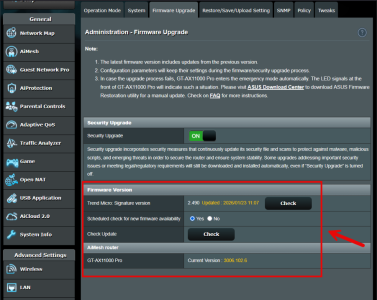
Lucky for you. I tried several times and even with different firmwares and lan ports, it just failed upon upload approx 30 to 50%. It just defaults to the original firmware. Somehow, getting to the rescue mode also quite an effort too...lol. I give up and probably try again some other time. Hopefully a new firmware from Asus resolves this bug problem of invisible link / buttons.
Rescue mode didn't work on mine either. If you have a second asus router try setting the problem one up as a mesh node.

I finally got it working after swapping the main router with a node and setting up the problem device as a node. Upload worked perfectly. Firmware upgraded and now the button isn't grayed out. Had to do factory resets on both, but the config file was restored and worked perfectly. I set the 88u back up as the main router afterwards.
 
I apologize; I type the wrong command. It should be "hnd-write".

I uploaded the 388.4 firmware through WinSCP to the /tmp folder. Then, I SSHed into the router and ran "hnd-write filename". After it completed, I manually rebooted once, and after a few minutes, it updated to 388.4.

Please note that when updating the firmware using "hnd-write," it doesn't create an additional partition like updating from the web interface. Therefore, there is a risk associated with using this command. However, in case of failure, I can update it again using rescue mode.
This worked perfectly for me.
I had the same issue, where it just didn't open the file select screen.
I've uploaded the 388.4 file to the temp folder with WinSCP (Make sure to select SCP protocol).
Then SSH to it and ran the command as pointed out here, waited to finish, rebooted the router and when it came back it was on the new version.
Also, the upload link now work on this version.
 
Don't do that.

Use the emergency recovery (or whatever it's called) method with Asus' tool and holding the reset button while applying power. Link to Asus' web page about it appears earlier in this thread. At least that way the /only/ way you can mess up is by sending a wrong firmware file.

Doing it the way you're asking about, in/by the way you're asking, you stand several other chances of fatally messing up beyond an improper firmware selection.
 
You have to have an ssh server running on the router to ssh in to a shell prompt, or to scp anything in to (or out of) the router. You also have to have sufficient acquaintance with the interactive shell to successfully manipulate it. Such things as relative vs. absolute paths, current working directory, how to enter commands and their parameters, etc.

I or many others here could provide step-by-step instruction. In actuality, if you were well-versed enough to perform the operation you'd have already been able to follow what was stated earlier in the thread. That's why I admonish you to not attempt that at this time.

If you cannot succeed using the established reset-recovery method then you should return / exchange the router or seek willing local (hands-on) assistance.

I'm sorry if my thoughts in this case disappoint or offend you. It's a highly performant device worth every penny you paid for it. It would be unfair to everyone upstream in the sales chain for you to "brick" it then seek remedy from them.
 
3. Change the GT-AX6000 into a aimesh node and then revert back and still no luck. The browse file and upload buttons are still missing under the firmware upgrade page.
It's been a while since reading the part of the thread which covered that, but I was thinking the idea was to make it a node and, _while_it's_the_node_, you upload its firmware via the controlling router's web interface. Your text quoted here suggests you (successfully?) made it a node, then switched it back to router mode, and only /then/ tried the firmware upload in its own web interface again.
 
"Cannot execute SCP to start transfer. Please make sure that SCP is installed on the server and path to it is included in PATH. You may also try SFTP instead of SCP.
Command failed with return code 127." (how to overcome this error?)
Are you on stock firmware now and trying to go to Merlin?
Stock firmware does not have SCP support anymore hence why you get the error message.
 
This works for me in Firefox.
  1. Browse to the firmware update page.
  2. Open a Web Console with Ctrl-Shift-K.
  3. At the >> prompt, type open_AiMesh_router_fw_upgrade();
That should invoke the firmware upgrade function and open a file browser so you can select the firmware file.
 
Normally looks like this and when clicked opens a pop up window to select the firmware file.

View attachment 54185

I did this with Firefox.
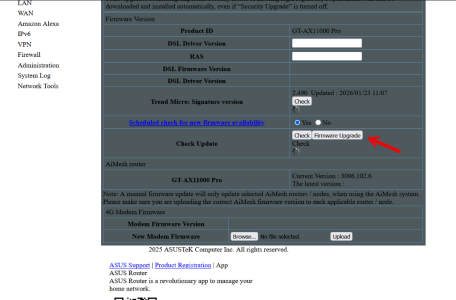
Go to the firmware update page then press "Alt" on keyboard then at the top of the browser select "View" > "page style" > "no style"
Now scroll toward the bottom of the update page and you should see an extra button before the "upload" button named "browse" which when clicked opens a pop up window for you to select a file for the update.

View attachment 54186

After you have the file selected and it is showing in the window next to "browse" go back to view > page style and change it back to basic page style then update should start.


This Fix absolutely WORKS! I just used it to finally update my router from 3.88.2_2 to 388.5

Thank you KevTech!
 
I guess is will just stick to this fw for now since there aren’t any major issue…
Didn't work for me.

I think there is some level of corruption stemming from a recent firmware version. When I saved/restored the configuration files after my first factory reset, that caused the entire system to stop working. A second/third reset had to be performed. The third being where I restored a year old configuration file to get the wifi working again.
If you haven't been able to update the firmware and are still using that hardware try one of the following (both work for my AC86U).

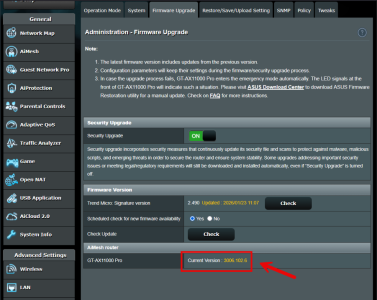
Use the AI Mesh node fw update endpoint: https://xxx.xxx.xx.x:xxx/Advanced_FirmwareUpgrade_Content.asp
Make sure you use the correct protocol and the IP of the router you want to update.
This is a much safer alternative than doing what kidd232 suggested since the nodes are just routers in a specific configuration; and so the update process will be functionally the same (worst case would be things like settings being lost, but in my case it functioned identical to the normal flow).

Alternatively you can open up the dev-tools and either add the missing function or call it directly from the console; open_AiMesh_router_fw_upgrade().


@Matth943 you were on the right track; hopefully this information helps you, if not sorry I couldn't get it to you sooner.
 

Support SNBForums w/ Amazon

If you'd like to support SNBForums, just use this link and buy anything on Amazon. Thanks!

Sign Up For SNBForums Daily Digest

Get an update of what's new every day delivered to your mailbox. Sign up here!

Members online

Back
Top