username$ nvram show | egrep 'key|cert|crt'
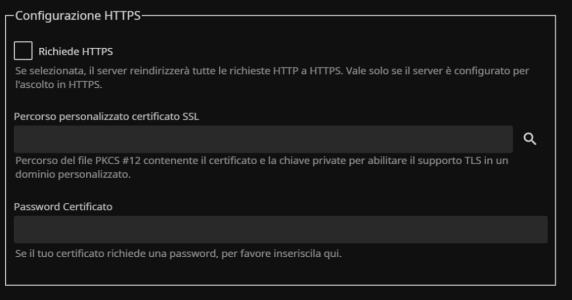
I'll start by saying that I'm not an expert on the web and certificates. I have a Raspberry Pi with Jellyfin installed on my network. I have no problems with HTTP but I would also like to enable HPTTS. Jellyfin asks me for the "path to the certificate".Premetto dicendo che non sono esperto di web e certificati. ho nella rete un rasberry con installato jellyfin. Non ho problemi con http ma vorrei abilitare anche il hptts. Jellyfin mi chiede "il percorso del certificato" .
1) posso usare il "Certificato gratis di Let's Encrypt" del router?
2) se la risposta è positiva come posso indicare il percorso?
You can find the cert on the router in /jffs/.le. Afraid you will not be able to re-use on another system asI'll start by saying that I'm not an expert on the web and certificates. I have a Raspberry Pi with Jellyfin installed on my network. I have no problems with HTTP but I would also like to enable HPTTS. Jellyfin asks me for the "path to the certificate".
1) Can I use the router's "Free Let's Encrypt Certificate"?
2) If the answer is yes, how can I specify the path?
Only english pls.Leggevo che cerbot deve dialogare sulla porta 80, già impegnata (Forwarded) sul router Asus per far leggere il DB alla mia applicazione Android motopark.
Look into dns challenge. It does not require port forwarding.Leggevo che cerbot deve dialogare sulla porta 80, già impegnata (Forwarded) sul router Asus per far leggere il DB alla mia applicazione Android motopark.
I read that cerbot must communicate on port 80, already busy (Forwarded) on the Asus router to allow my Android motopark application to read the DB.
sono un testone, un mulo ed ho provato comunque ad utilizzare le informazioni date ed ho scoperto che funziona ugualmente. io ho ddns ma dovrebbe essere la stessa cosa con asuscomm.com. ecco come ho fatto
#!/bin/bash
############################################################
# Configuration (edit these values according to your setup)
############################################################
REMOTE_USER="router_user"
REMOTE_HOST="router_address"
# Paths to the certificate and private key on Asuswrt-Merlin
REMOTE_CERT="/jffs/.le/domain_ecc/fullchain.pem"
REMOTE_KEY="/jffs/.le/domain_ecc/domain.key"
# Local directory where certificates will be stored
LOCAL_DIR="/path/to/local/certs"
# Password for the generated PFX file
PFX_PASSWORD="your_pfx_password"
############################################################
# Script starts here
############################################################
# Create local directory if it doesn't exist
mkdir -p "$LOCAL_DIR"
# Get remote certificate hash
REMOTE_HASH=$(ssh ${REMOTE_USER}@${REMOTE_HOST} "sha256sum ${REMOTE_CERT} | awk '{print \$1}'")
# Get local certificate hash (if present)
if [ -f "${LOCAL_DIR}/cert.pem" ]; then
LOCAL_HASH=$(sha256sum ${LOCAL_DIR}/cert.pem | awk '{print $1}')
else
LOCAL_HASH="none"
fi
echo "Remote hash: $REMOTE_HASH"
echo "Local hash: $LOCAL_HASH"
# Compare hashes
if [ "$REMOTE_HASH" = "$LOCAL_HASH" ]; then
echo "Certificate unchanged. No action required."
exit 0
fi
echo "Certificate changed. Updating..."
# Copy updated certificates from the router
scp ${REMOTE_USER}@${REMOTE_HOST}:${REMOTE_CERT} ${LOCAL_DIR}/cert.pem
scp ${REMOTE_USER}@${REMOTE_HOST}:${REMOTE_KEY} ${LOCAL_DIR}/key.pem
# Convert to PFX format
echo "Converting to PFX..."
openssl pkcs12 -export -out ${LOCAL_DIR}/certificate.pfx \
-inkey ${LOCAL_DIR}/key.pem \
-in ${LOCAL_DIR}/cert.pem \
-passout pass:${PFX_PASSWORD}
echo "Update complete."
# (Optional) Restart a local service
# systemctl restart your_service
#!/bin / hit
# --- CONFIGURATION ---
ROUTER_IP="192.168.1.1"
ROUTER_USER="admin"
# Typical path for Let's Encrypt certificates on Merlin
REMOTE_CERT_PATH="/jffs/.le/YOURDOMAIN.asuscomm.com"
LOCAL_DIR="/home/pi/jellyfin_certs"
PFX_PASSWORD="your_secret_pfx_password"
mkdir -p $LOCAL_DIR
# 1. Retrieve the file from the echo router
"Copying certificates from the router..."
scp $ROUTER_USER@$ROUTER_IP:$REMOTE_CERT_PATH/fullchain.cer $LOCAL_DIR/cert.pem
scp $ROUTER_USER@$ROUTER_IP:$REMOTE_CERT_PATH/YOURDOMAIN.asuscomm.com.key $LOCAL_DIR/key.pem
# 2. Convert to PFX (Jellyfin format)
echo "Converting to PFX format..."
openssl pkcs12 -export -out $LOCAL_DIR/jellyfin.pfx\
-inkey $LOCAL_DIR/key.pem\
-in $LOCAL_DIR/cert.pem\
-passout pass:$PFX_PASSWORD
#3. Permissions (Jellyfin must be able to read it)
chmod 644 $LOCAL_DIR/jellyfin.pfx
echo "Done! Now load $LOCAL_DIR/jellyfin.pfx into the Jellyfin panel."
In italiano...
1. Configura l'accesso senza password (SSH Key)
Perché lo script funzioni in automatico, il Raspberry deve poter entrare nel router senza che tu debba digitare la password ogni volta.
Sul Raspberry, genera una chiave (se non l'hai già): ssh-keygen -t rsa (premi invio a tutto).
Nota: Se ssh-copy-id non funziona con Merlin, copia il contenuto di ~/.ssh/id_rsa.pub del Raspberry e incollalo nell'interfaccia web del router sotto Administration -> System -> Authorized Keys.- 2. Lo Script di Automazione
Crea un file chiamato update_cert.sh sul Raspberry:
Bash
Nano ~/update_cert.sh
Incolla questo codice (modifica le parti in grassetto):
Bash
#!/bidino/colpo
# --- CONFIGURAZIONE ---
ROUTER_IP="192.168.1.1"
ROUTER_USER="admin"
# Percorso tipico dei certificati Let's Encrypt su Merlin
REMOTE_CERT_PATH="/jffs/.le/TUODOMINIO.asuscomm.com"
LOCAL_DIR="/home/pi/jellyfin_certs"
PFX_PASSWORD="tua_password_segreta"
mkdir -p $LOCAL_DIR
# 1. Router file dal Prelievo
echo "Copiando i certificati dal router..."
scp $ROUTER_USER@$ROUTER_IP:$REMOTE_CERT_PATH/fullchain.cer $LOCAL_DIR/cert.pem
scp $ROUTER_USER@$ROUTER_IP:$REMOTE_CERT_PATH/TUODOMINIO.asuscomm.com.key $LOCAL_DIR/key.pem
# 2. Conversione in PFX (formato Jellyfin)
echo "Convertendo in formato PFX..."
openssl pkcs12 -export -out $LOCAL_DIR/jellyfin.pfx \
-inkey $LOCAL_DIR/key.pem \
-in $LOCAL_DIR/cert.pem \
-passout pass:$PFX_PASSWORD
# 3. Permessi (Jellyfin deve poterlo leggere)
chmod 644 $LOCAL_DIR/jellyfin.pfx
echo "Fatto! Ora carica $LOCAL_DIR/jellyfin.pfx nel pannello di Jellyfin."
Rendi lo script eseguibile:
Bash
chmod +x ~/update_cert.sh
3. Gestione del DNS e Porte (Fondamentale)
Dato che il certificato è per tuonomo.asuscomm.com, hai due scenari:
Dall'esterno: Vai nel router (WAN -> Port Forwarding) e apri la porta 8920 (esterna) verso la 8920 (interna, HTTPS di Jellyfin) del Raspberry. Ti collegherai con https://tuonomo.asuscomm.com:8920. Dall'interno: Se scrivi 192.168.1.200 avrai l'errore SSL. Devi andare nel router (LAN -> DHCP Server) e nella sezione Manual Assignment o DNS Hostname, associa l'IP 192.168.1.200 al nome tuonomo.asuscomm.com.- 4. Automazione Totale (cron)
Per far sì che il Raspberry controlli se c'è un nuovo certificato ogni settimana:
Digita crontab -e. Aggiungi in fondo questa riga: 0 3 * * 1 /bin/bash /home/pi/update_cert.sh (Eseguirà lo script ogni lunedì alle 03:00 del mattino).- Un'ultima cosa importante:Su Jellyfin, ricordati di abilitare la porta 8920 (nelle impostazioni di Rete) e spuntare "Abilita HTTPS". Se non vedi la porta 8920 aperta, lo script caricherà il certificato ma Jellyfin non lo userà.
ssh-keygen -t rsa -b 4096 -f /home/pi/.ssh/id_rsa_router
ssh-copy-id -p <ROUTER_SSH_PORT> <router_user>@192.168.1.1
cat ~/.ssh/id_rsa.pub
ssh [email protected] -i /home/pi/.ssh/id_rsa_router
nano ~/update_cert.sh
#!/bin/bash
# -------------------------------
# USER CONFIGURATION SECTION
# -------------------------------
# Router SSH username
REMOTE_USER="router_user"
# Router IP address
REMOTE_HOST="192.168.1.1"
# Path to the Let's Encrypt certificate directory on Merlin
# IMPORTANT:
# Replace YOURDOMAIN_ecc with the actual folder name you see under /jffs/.le/
# Example: myname.asuscomm.com_ecc
REMOTE_CERT_DIR="/jffs/.le/YOURDOMAIN_ecc"
# Certificate and key inside the folder
REMOTE_CERT="$REMOTE_CERT_DIR/fullchain.pem"
REMOTE_KEY="$REMOTE_CERT_DIR/YOURDOMAIN.key"
# Local directory where certificates will be stored
LOCAL_DIR="/home/pi/jellyfin_certs"
# Password for the generated PFX file (Jellyfin requires it)
PFX_PASSWORD="your_pfx_password"
# -------------------------------
# SCRIPT STARTS HERE
# -------------------------------
# Create local directory if missing
mkdir -p "$LOCAL_DIR"
# Get remote certificate hash
# This allows us to detect if the certificate changed
REMOTE_HASH=$(ssh ${REMOTE_USER}@${REMOTE_HOST} "sha256sum ${REMOTE_CERT}" | awk '{ print $1 }')
# Get local certificate hash (if present)
if [ -f "${LOCAL_DIR}/cert.pem" ]; then
LOCAL_HASH=$(sha256sum ${LOCAL_DIR}/cert.pem | awk '{ print $1 }')
else
LOCAL_HASH="none"
fi
echo "Remote hash: $REMOTE_HASH"
echo "Local hash: $LOCAL_HASH"
# Compare hashes
if [ "$REMOTE_HASH" = "$LOCAL_HASH" ]; then
echo "Certificate unchanged. No action required."
exit 0
fi
echo "Certificate changed. Updating..."
# Copy updated certificates from the router
scp ${REMOTE_USER}@${REMOTE_HOST}:${REMOTE_CERT} ${LOCAL_DIR}/cert.pem
scp ${REMOTE_USER}@${REMOTE_HOST}:${REMOTE_KEY} ${LOCAL_DIR}/key.pem
# Convert to PFX format (required by Jellyfin)
echo "Converting to PFX..."
openssl pkcs12 -export -out ${LOCAL_DIR}/jellyfin.pfx \
-inkey ${LOCAL_DIR}/key.pem \
-in ${LOCAL_DIR}/cert.pem \
-passout pass:${PFX_PASSWORD}
# Set permissions so Jellyfin can read it
chmod 644 ${LOCAL_DIR}/jellyfin.pfx
echo "Update complete."
# Imposta permessi leggibili da Jellyfin
chmod 644 ${LOCAL_DIR}/jellyfin.pfx
# Riavvia Jellyfin per caricare il nuovo certificato
sudo systemctl restart jellyfin
echo "Done. New certificate exported to jellyfin.pfx and Jellyfin restarted.
chmod +x ~/update_cert.sh
crontab -e
0 3 * * 1 /bin/bash /home/pi/update_cert.sh
sudo visudo
pi ALL=NOPASSWD: /bin/systemctl restart jellyfin

Welcome To SNBForums
SNBForums is a community for anyone who wants to learn about or discuss the latest in wireless routers, network storage and the ins and outs of building and maintaining a small network.
If you'd like to post a question, simply register and have at it!
While you're at it, please check out SmallNetBuilder for product reviews and our famous Router Charts, Ranker and plenty more!